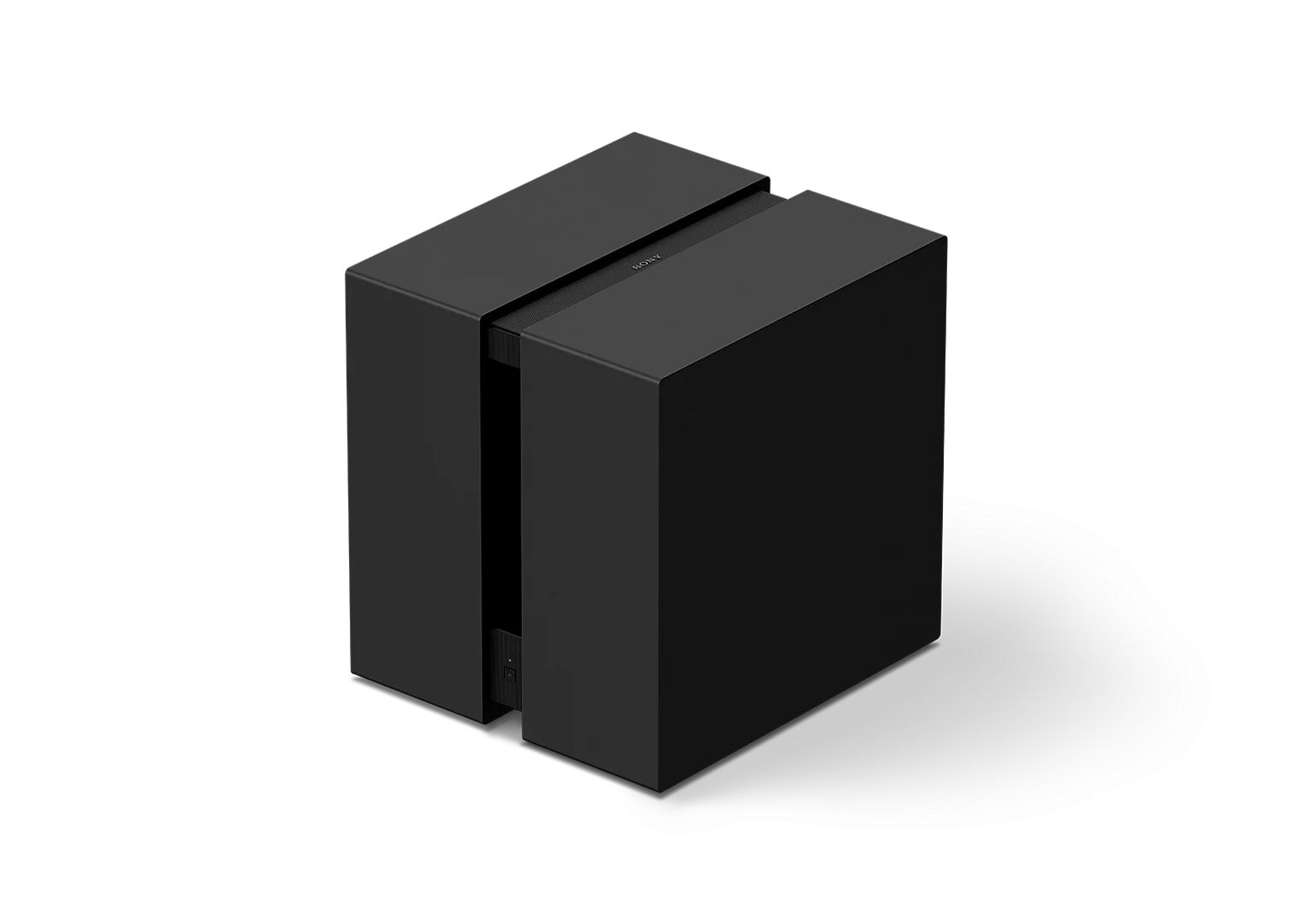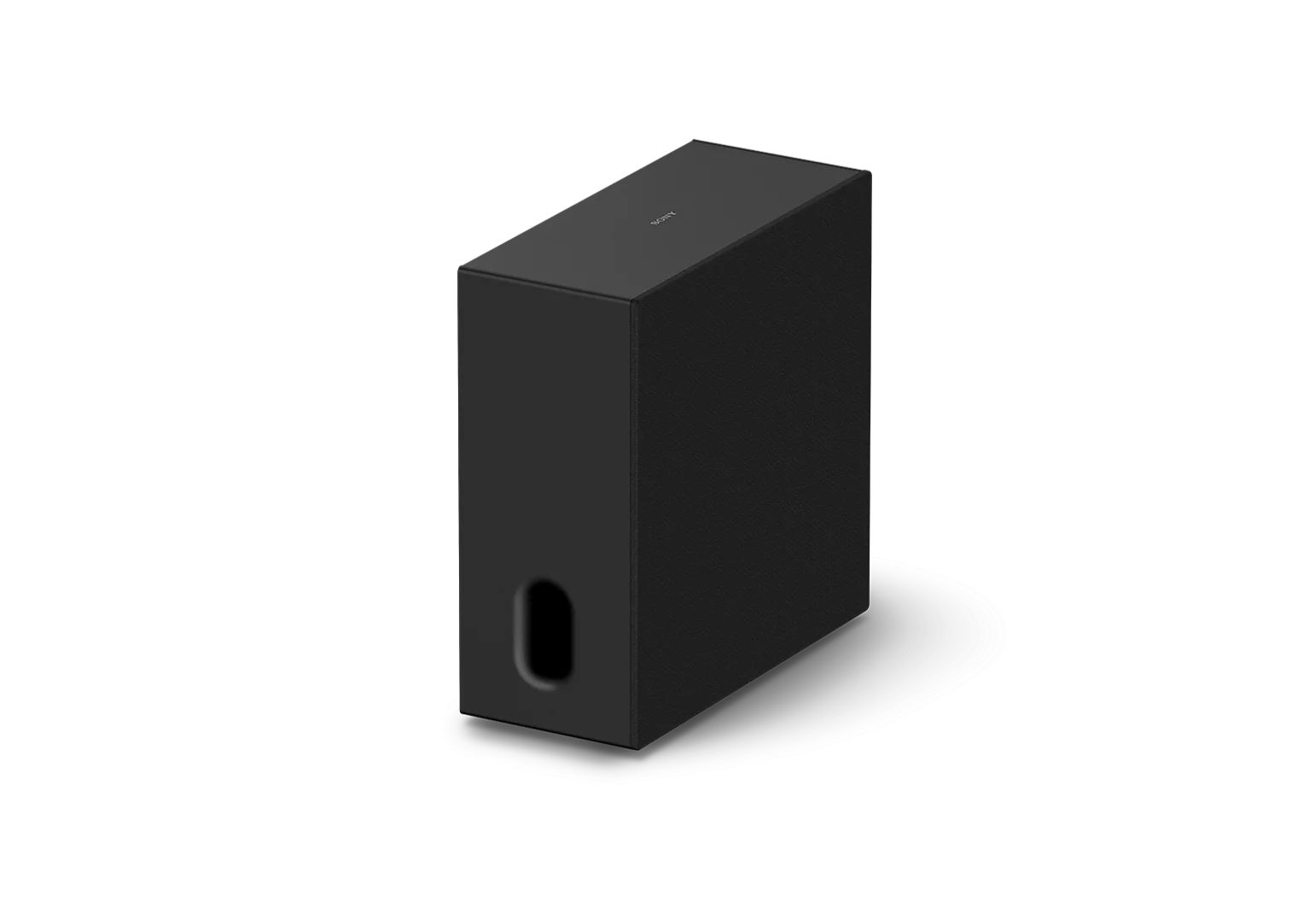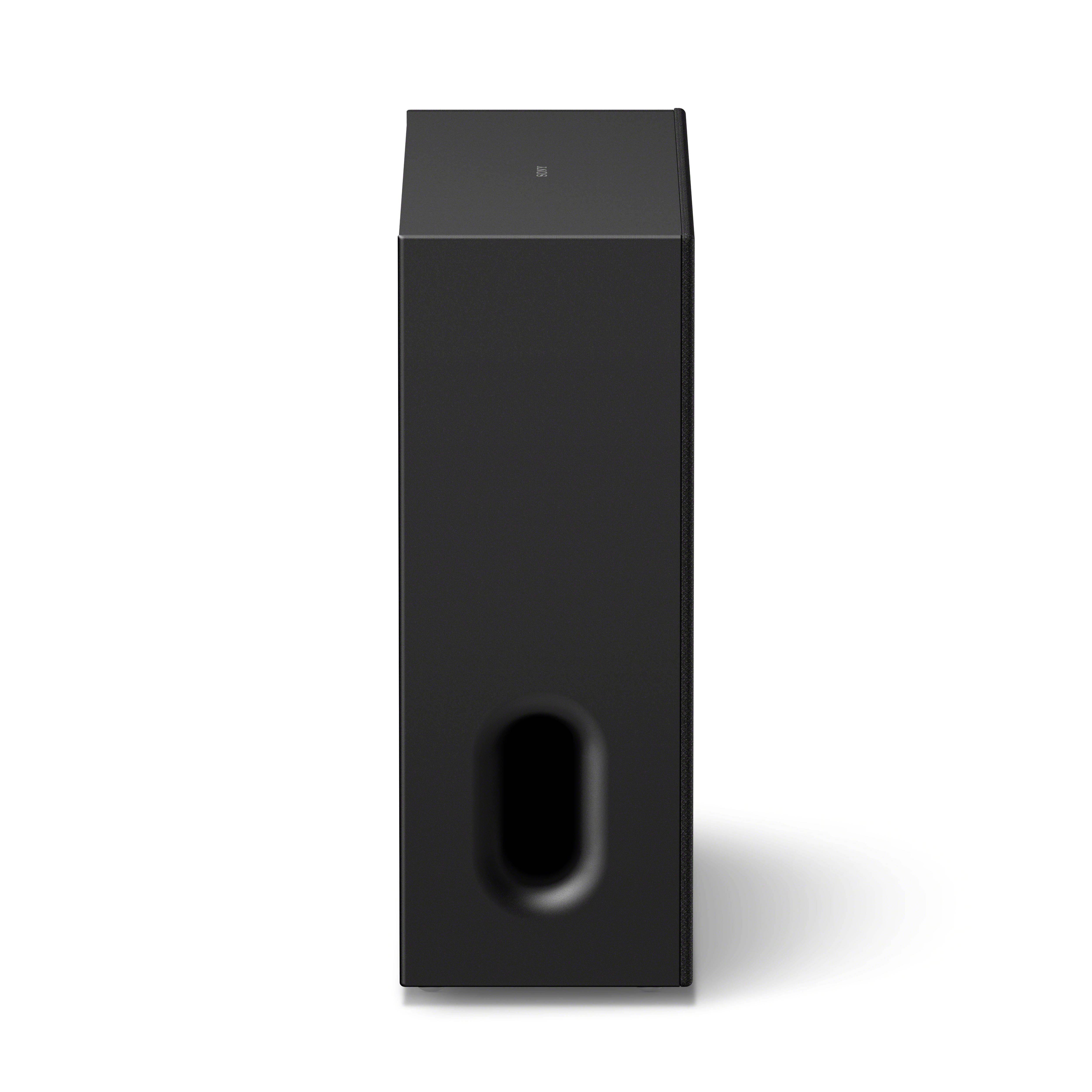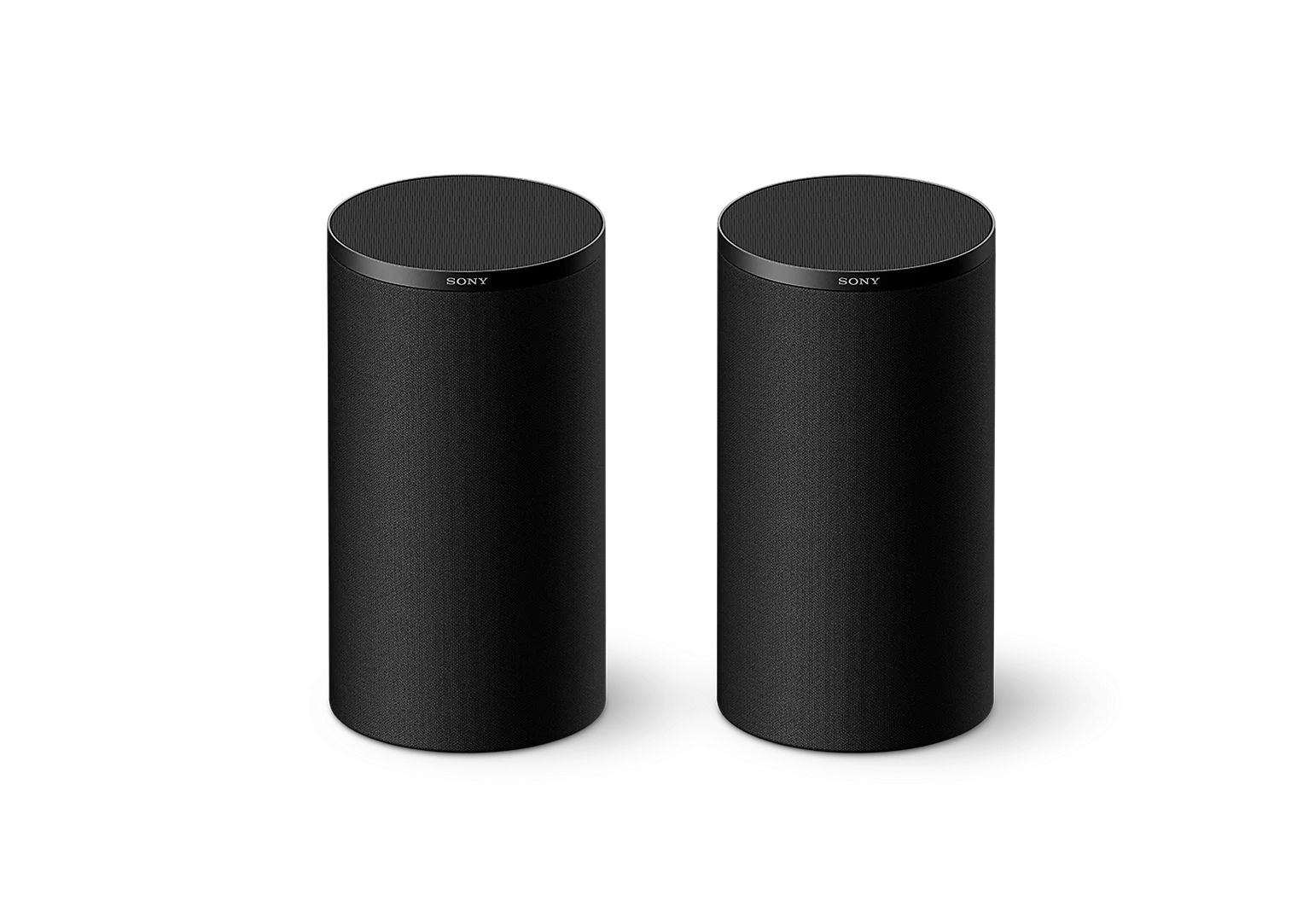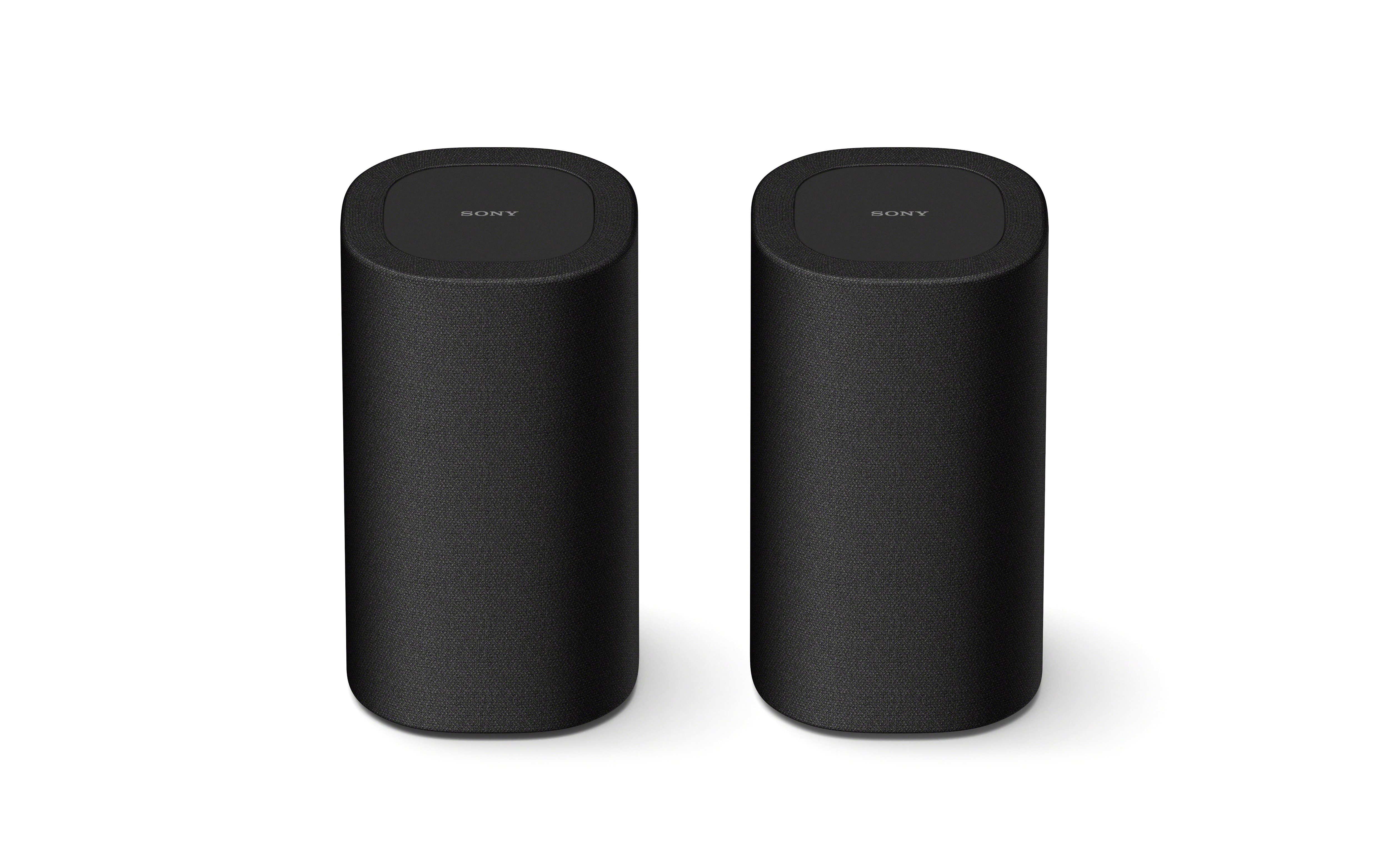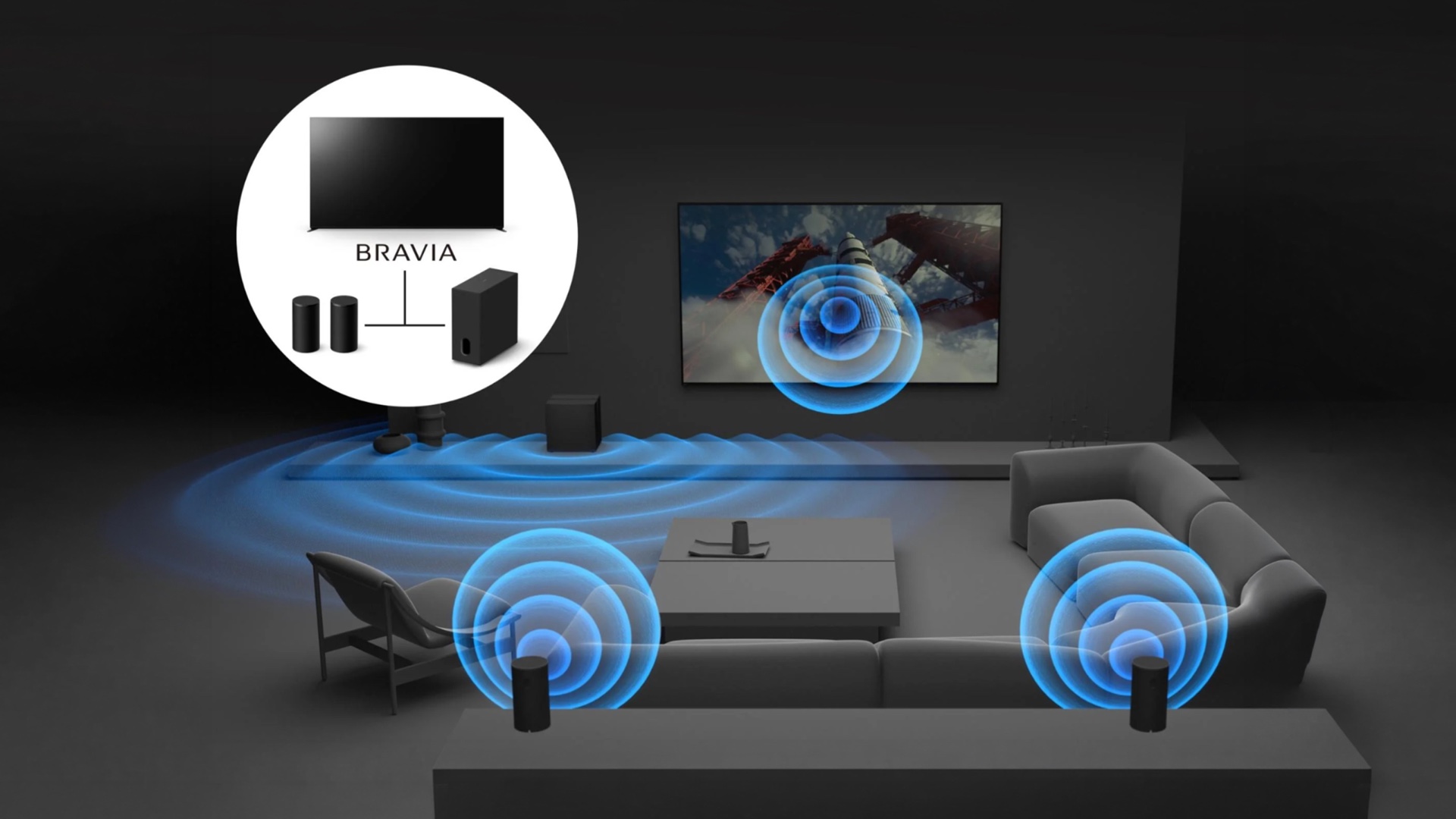



Direct Connect to BRAVIA is a wireless pairing system built into compatible Sony TVs that lets you add a subwoofer speaker and rear speakers directly to your television. Rather than routing audio through an intermediary device, the TV itself handles the front and centre channels, with your wireless subwoofer and wireless rear speakers completing the surround sound system. Once paired, your components work together automatically every time you power on.
This guide covers what you need and how to get everything set up.
What You Need
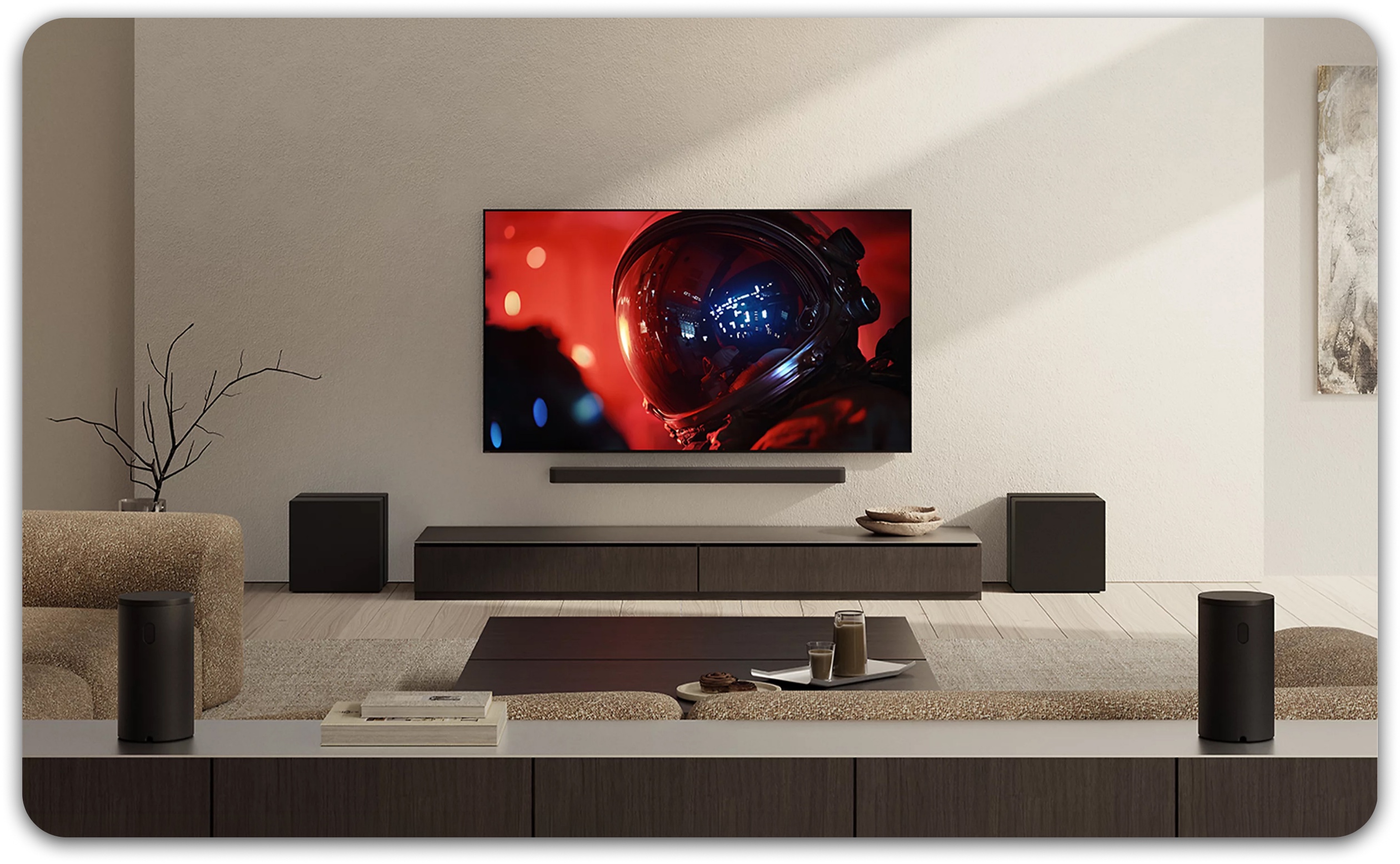
To use Direct Connect to BRAVIA, you will need a compatible BRAVIA TV and compatible Sony BRAVIA Theatre Sub or Rear speakers.
Compatible BRAVIA TVs include the BRAVIA 9 II, BRAVIA 8 II, BRAVIA 7 II, BRAVIA 9, BRAVIA 8, BRAVIA 7, BRAVIA 5, and A95L Series.
Compatible speakers include:
BRAVIA Theatre Sub 9 (SA-SW9)
BRAVIA Theatre Sub 8 (SA-SW8)
BRAVIA Theatre Sub 7 (SA-SW7)
BRAVIA Theatre Rear 9 (SA-RS9)
BRAVIA Theatre Rear 8 (SA-RS8)
You can connect a wireless subwoofer on its own, rear speakers on their own, or both together for a full surround sound setup. Each combination is supported.
Before pairing anything, there is one step to take care of first.
Start with a Firmware Update
Both your TV and BRAVIA Theatre speakers need to be running the latest available firmware before pairing will work correctly. If your TV is connected to the internet, go to Settings and check for any available system software updates. For your speakers, open the Bravia Connect app, connect to each speaker and install any firmware update shown.
Once both your TV and speakers are up to date, you are ready to start.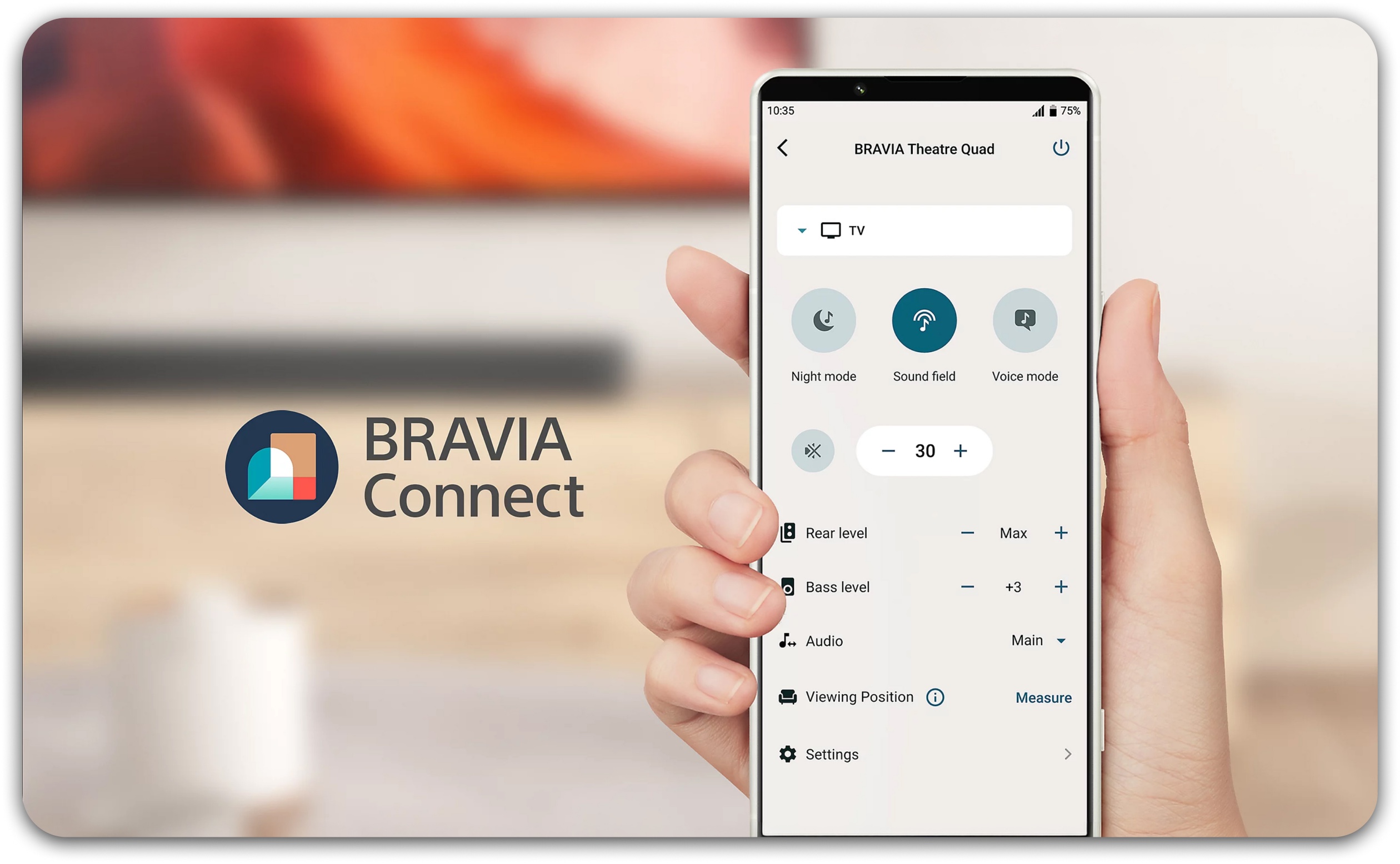
Step 1: Power on Your Speakers
Place your subwoofer and rear speakers where you want them in the room, then power them on. Each speaker enters pairing mode automatically on first use. If a speaker has been previously paired to another device, hold the pairing button until the indicator light flashes to reset it into pairing mode.
With your speakers ready, the next step is on the TV.
Step 2: Open Sound Settings on Your TV
On your BRAVIA TV, navigate to Settings, then Sound. Look for the Speaker Settings or Audio Output section and select Wireless Speakers. Your TV will begin scanning for compatible BRAVIA Theatre speakers within range.
Step 3: Pair Your Speakers
Your speakers will appear in the list of available devices. Select the speaker you want to connect, then follow the on-screen instructions to complete pairing. If you are connecting both a wireless subwoofer and rear speakers, repeat this step for each unit.
With pairing complete, you can fine-tune how everything sounds together.
Step 4: Adjust Your Speaker Balance
Once paired, audio will route through your connected speakers automatically. To adjust the volume balance between your TV speakers and your wireless subwoofer or rear speakers, return to Settings, then Sound, then Wireless Speakers. From here you can set each speaker’s output level to suit your room and listening preference.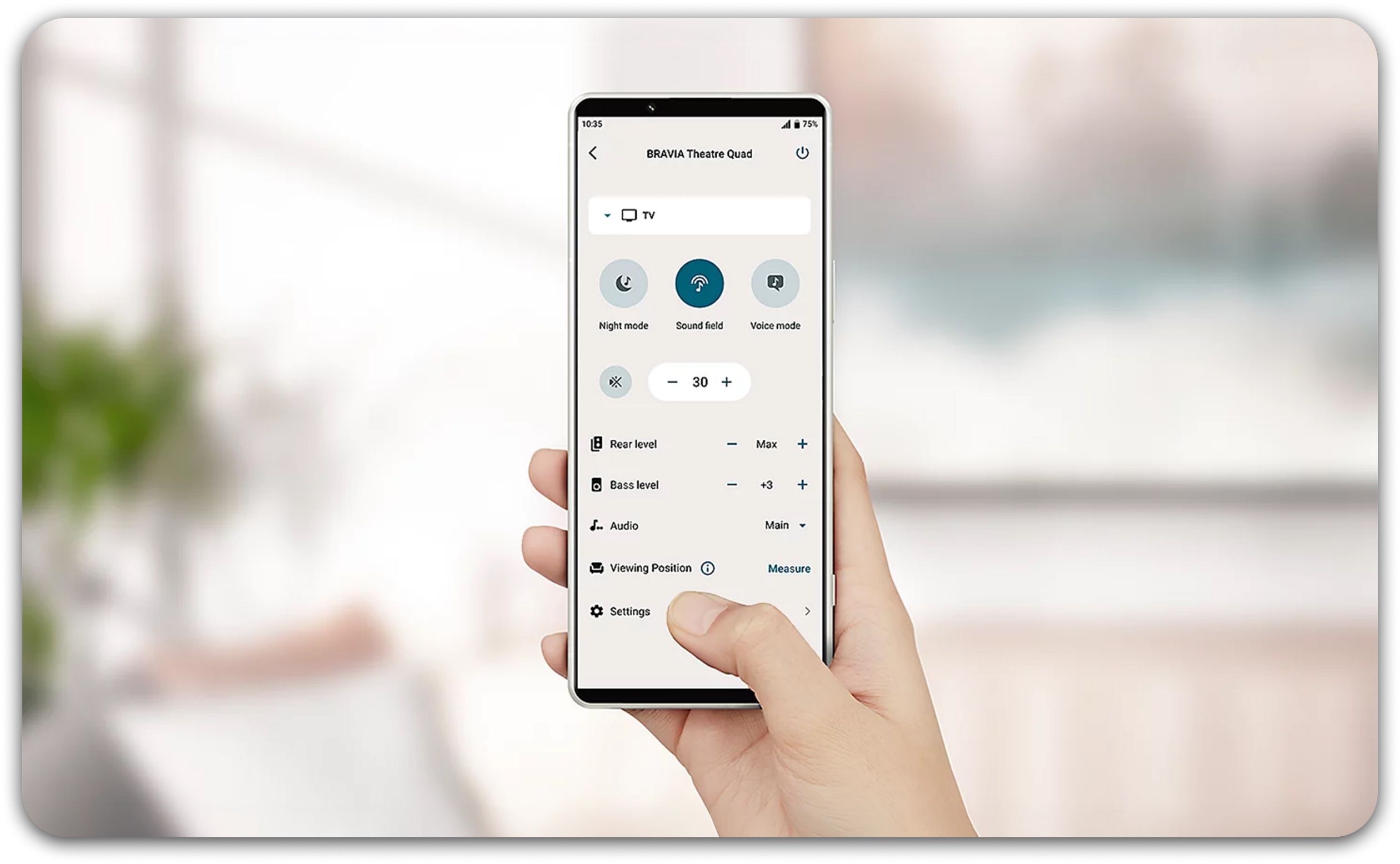
Getting the Most from Your Setup
A few settings are worth checking once your speakers are paired to make sure you are hearing everything your system can deliver.
Enable audio formats: Dolby Atmos and DTS:X both support multi-channel output on compatible BRAVIA TVs. If your TV is connected via a HDMI eARC source, these formats are passed through at full quality.
Check your content: Films, music, and games mixed for spatial audio make the most of a multi-speaker setup, with sound distributed across front, rear and bass speaker channels.
Use 360 Spatial Sound Mapping if available: When BRAVIA Theatre Rear speakers are paired with a compatible BRAVIA TV, this feature maps virtual speakers throughout the room, including overhead via the Rear 9's up-firing speakers, for an immersive sound field that goes beyond physical speaker placement alone.
A Home Theatre System Built Around Your TV
Direct Connect to BRAVIA gives you the audio range of a complete home theatre system without running cables across the room. Your BRAVIA TV covers dialogue and on-screen action, a dedicated bass speaker handles low-end depth, and rear speakers extend sound into the space around you. It is a practical way to build a Sony home theatre that grows with you, starting with what you have and adding components when you are ready.