


Article Summary
Enjoy private listening on your Sony BRAVIA TV by connecting compatible Bluetooth headphones. Once paired, you can enjoy movies, shows, and music through your headphones without disturbing anyone around you.
- Check Bluetooth Compatibility: Confirm that your BRAVIA supports Bluetooth audio output and the A2DP profile. This is available on compatible Google TV and Android TV models.
- Put Your Headphones in Pairing Mode: Set your Sony headphones to Bluetooth pairing mode. The exact method varies between WH, WF, and WI series models, but typically involves holding the Power, Pairing, or touch controls for several seconds.
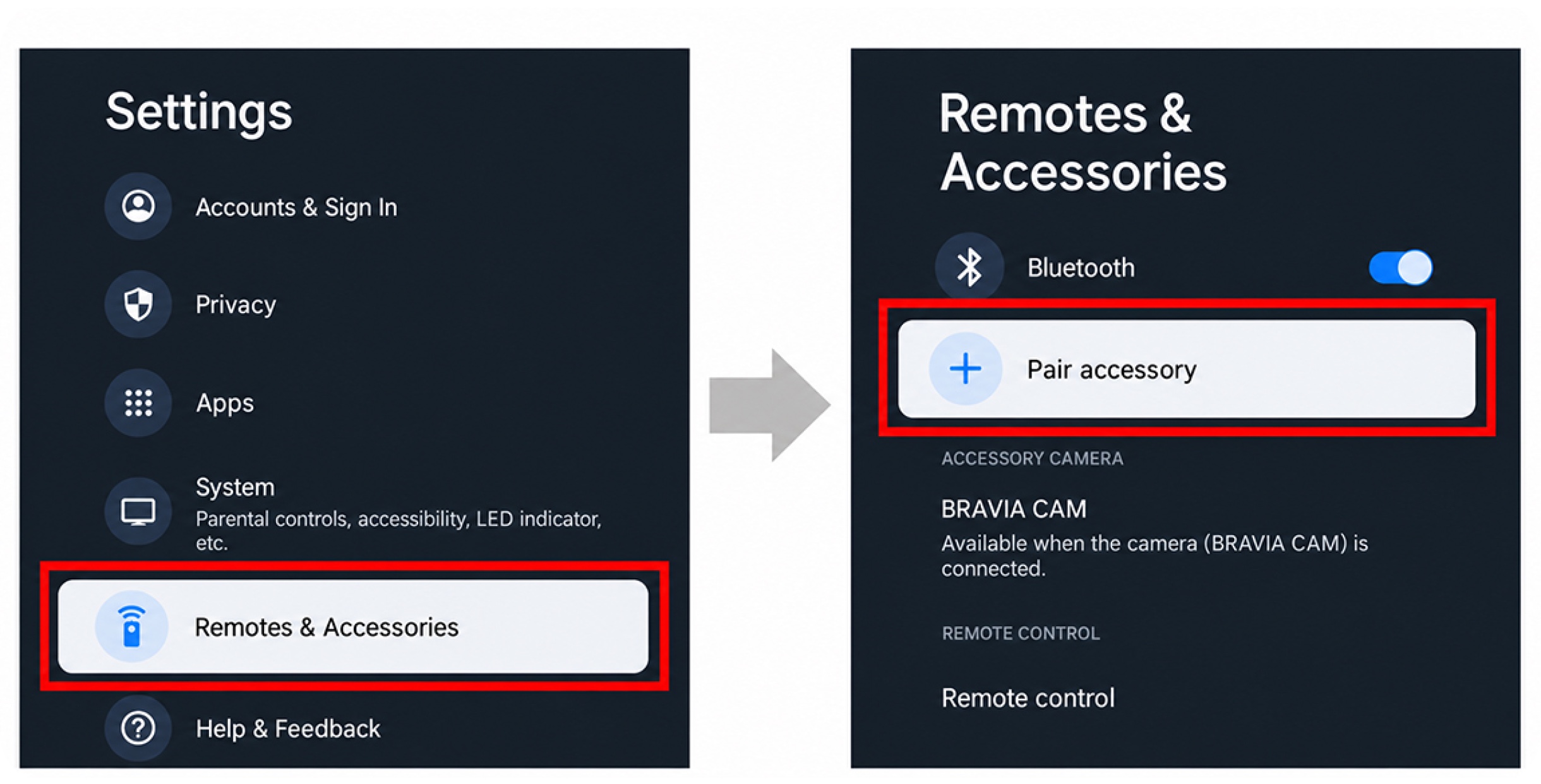
- Pair with Your BRAVIA: On your TV, go to Settings > Remotes & Accessories > Add accessory. Select your headphones when they appear in the list of available Bluetooth devices.
- Switch Your Audio Output: If sound does not automatically move to your headphones after pairing, go to Settings > Display & Sound > Audio Output and select your headphones as the active audio device.
- Optimise Your Listening Experience: If you notice a delay between the picture and sound, check the audio sync or lip-sync settings on your BRAVIA. Once paired, your headphones should reconnect automatically when powered on and within range.
In short: Check that your BRAVIA supports Bluetooth audio, put your headphones into pairing mode, add them through your TV's Bluetooth settings, and select them as your audio output. Once set up, reconnecting is quick and gives you a simple way to enjoy your BRAVIA privately through headphones.
Some things are just better with headphones on. Late nights, early mornings, or simply wanting the audio entirely to yourself, Bluetooth headphones give you the full experience while keeping things quiet for everyone else. The good news is that pairing them to your Sony BRAVIA TV is straightforward, and once set up, reconnecting is even quicker.
What You Need
Before pairing, run through this quickly:
Confirm your BRAVIA supports Bluetooth audio output. This is available on Google TV and Android TV models that support the A2DP profile. Check your TV's specifications or the Sony support page to verify
Your Bluetooth headphones are charged and ready
Your Sony Smart TV is powered on

Step 1: Put Your Sony Headphones in Pairing Mode
If you are pairing your Sony headphones to your BRAVIA for the first time after purchase or after a reset, they will enter pairing mode automatically when powered on.
For subsequent pairings, the steps vary slightly by model:
WH series (over-ear): Press and hold the Power button or PAIRING button for about seven seconds until the indicator flashes and you hear the voice guidance "Bluetooth Pairing"
WF series (truly wireless): Touch and hold the left and right touch sensors simultaneously for about seven seconds until you hear "Bluetooth Pairing"
WI series (neckband): Press and hold the Power button for about seven seconds until the indicator flashes alternately in blue and red and you hear "Bluetooth Pairing"
Once you hear or see the pairing signal, your headphones are ready to be detected by your TV.
Step 2: Open Bluetooth Settings on Your TV
Navigate to Settings > Remotes & Accessories > Add accessory.
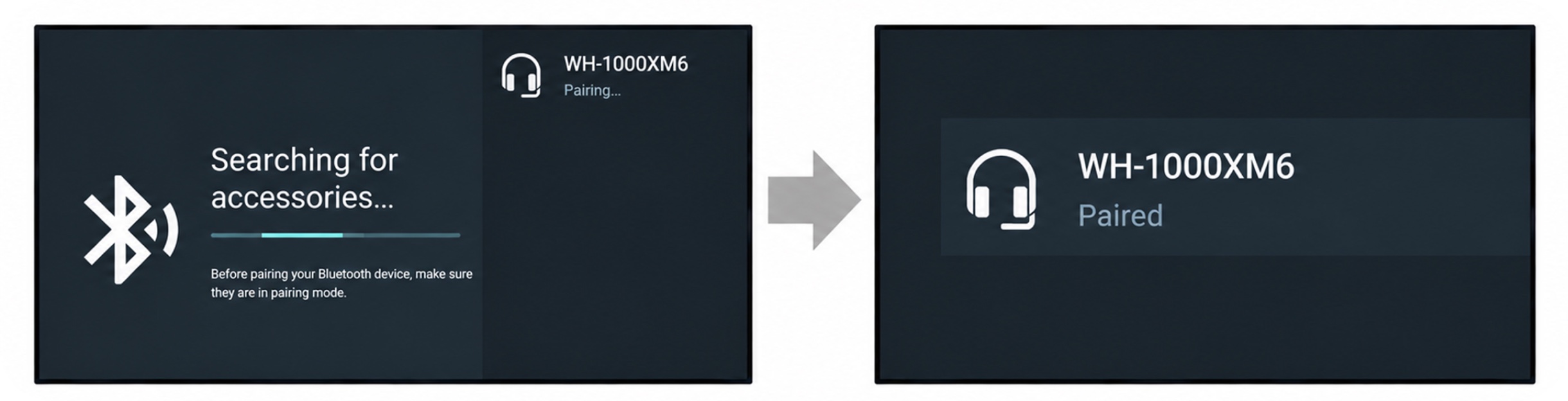
Your TV will begin scanning for nearby Bluetooth devices automatically. Keep your headphones close to the TV during this step for a stronger initial signal.
Step 3: Select Your Headphones
Your headphones will appear in the list of detected devices once found. Select them to begin pairing. A confirmation message on screen will let you know the connection has been established successfully.
Step 4: Switch Your Audio Output
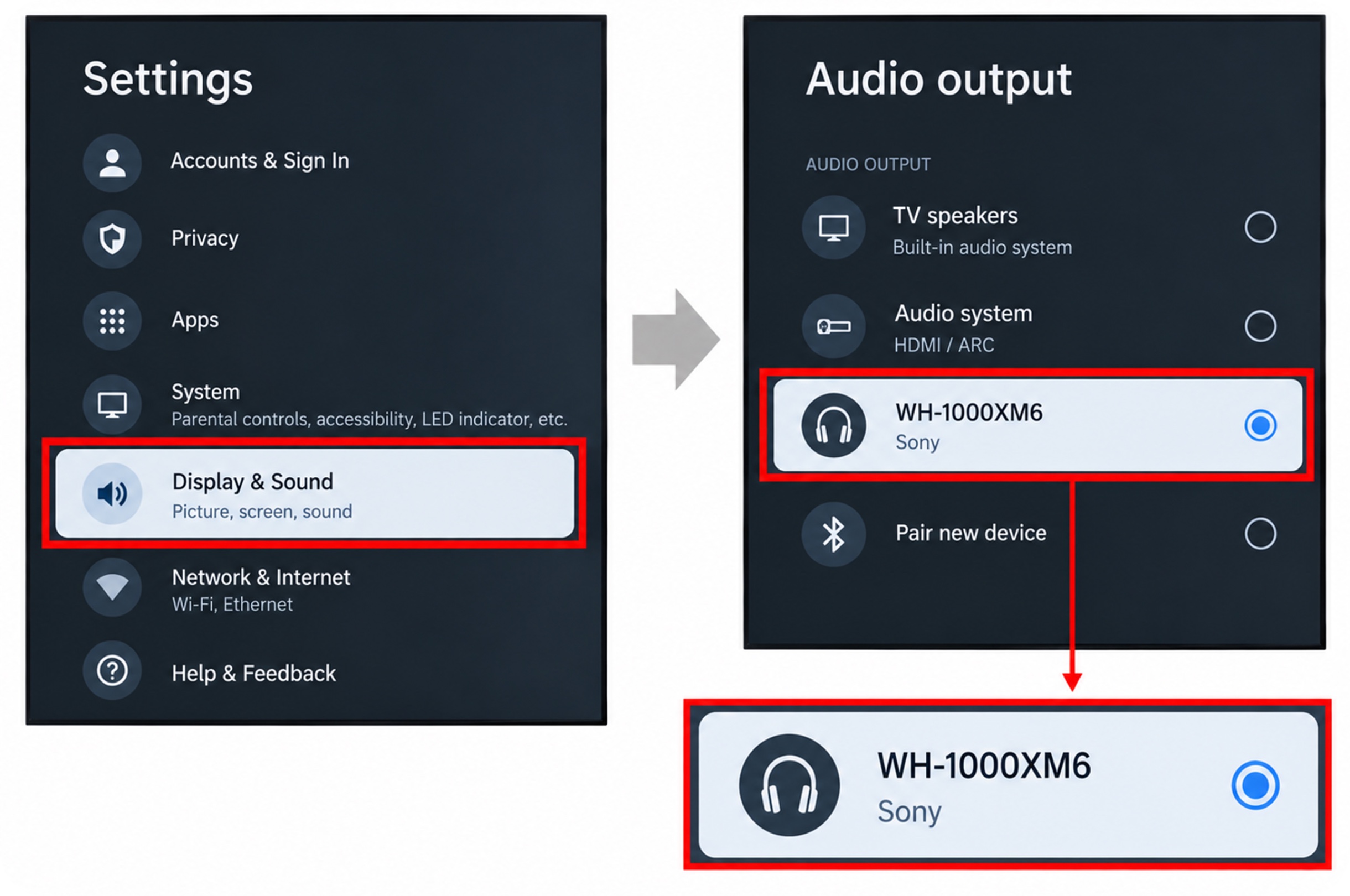
Pairing does not always mean the audio switches over automatically. To route sound through your headphones, navigate to Settings > Display & Sound > Audio Output and select your headphones from the list. Your TV speakers will mute once your headphones are set as the active output, and all audio will come through from that point on.
A Few Things Worth Knowing
Bluetooth can occasionally introduce a slight audio delay. If dialogue feels out of sync with the picture, look for audio sync or lip-sync settings under Settings > Display & Sound and adjust accordingly
Your headphones stay paired to your TV after the session ends and should reconnect automatically the next time they are powered on and in range
To bring audio back to your TV speakers, return to Settings > Display & Sound > Audio Output and switch your output back
For the smoothest compatibility, pairing Sony headphones with your BRAVIA is recommended, particularly on a 4K Smart TV or OLED TV where audio quality makes a noticeable difference
Ready to Watch
That is all it takes. Once your Sony headphones are paired and your audio is routed, your BRAVIA handles everything from there. Whether you have an OLED TV or a Mini LED TV, the sound is entirely on your terms.