


Article Summary
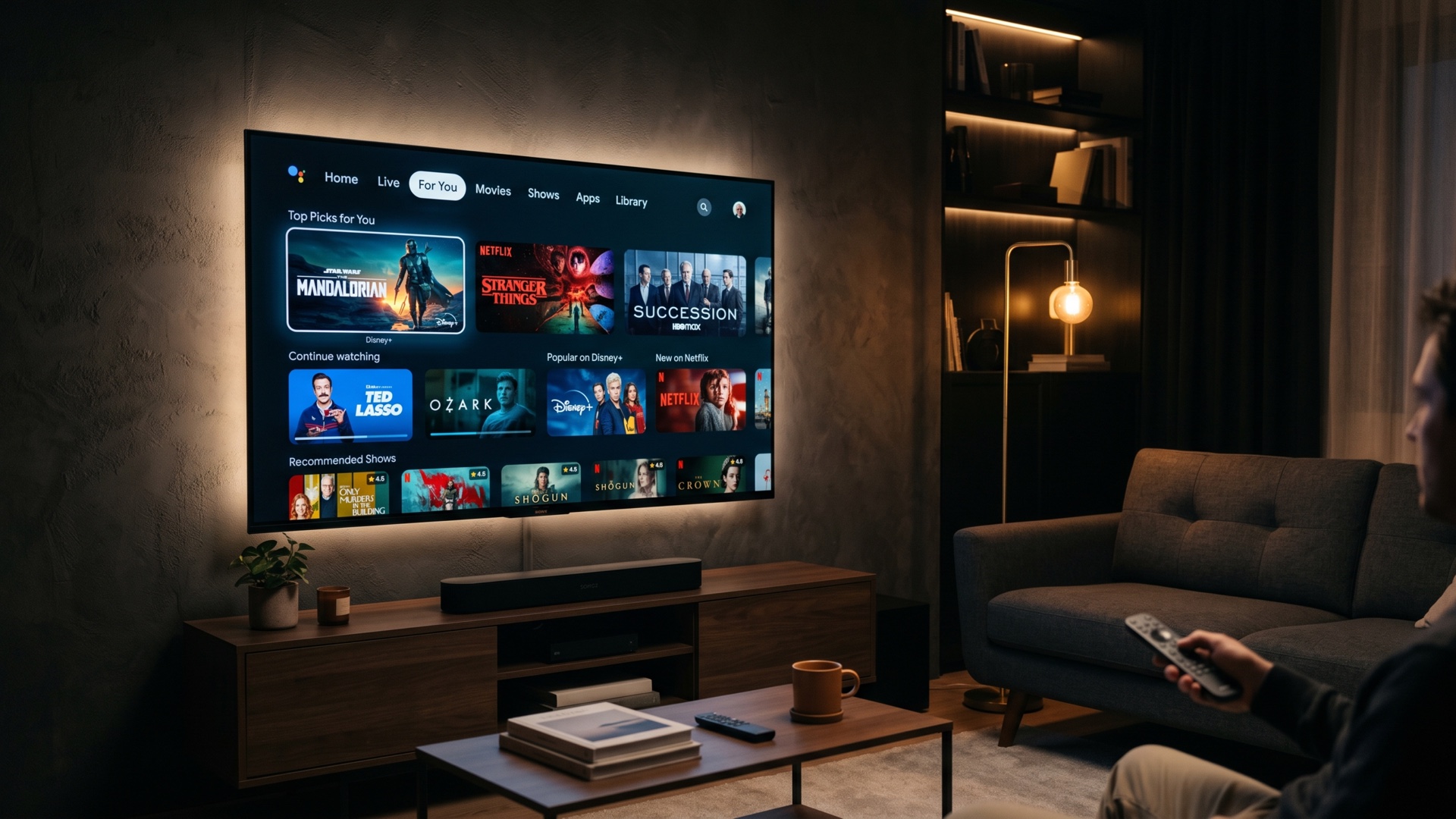
Navigate your Sony BRAVIA TV faster with your voice. Google Assistant is built into Google TV and Android TV models, letting you search for content, control playback, adjust settings, and manage smart home devices using simple voice commands.
- Get Ready: Confirm your BRAVIA runs Google TV or Android TV, then make sure you have a linked Google account, an active internet connection, and a BRAVIA remote with a built-in microphone button.
- Use the Remote: Press and hold the microphone button, speak clearly, then release it. Google Assistant responds on screen or through your TV’s speakers, with no additional setup required.
- Go Hands-Free: On select BRAVIA models with a built-in microphone, set up Voice Match in your TV settings, then simply say “Hey Google” to control your TV without pressing a button.
- Ask Almost Anything: Find movies and shows, control volume and playback, turn on subtitles, switch inputs, check the weather, or control linked smart home devices such as lights.
- Keep in Mind: Google Assistant availability depends on your country and language, and it works best with a stable internet connection. Voice Match can recognise different voices and deliver personalised results for each user.
In short: Google Assistant makes your BRAVIA TV quicker and easier to use. Use the remote’s microphone button for instant access, or set up “Hey Google” on supported models for hands-free control. From finding 4K and HDR content to managing your smart home, your voice can do the work so you can focus on what is on screen.
Getting around your Sony BRAVIA TV gets a lot quicker once you start using your voice. Google Assistant is built into Google TV and Android TV models, and whether you are looking for something to watch, adjusting your settings, or managing smart home devices, a voice command usually gets you there faster. Here is how to set it up and what you can do with it.

Getting Ready
Google Assistant is available on both Google TV and Android TV models, so the first thing to confirm is which one your BRAVIA is running. Go to Settings > Privacy > Google Assistant or look for the Google TV home screen interface if you are not sure.
Once confirmed, make sure you have:
A Google account linked to your TV
An active internet connection
The BRAVIA remote with a built-in microphone button
With those in place, you are ready to get started. There are two ways to activate Google Assistant on your BRAVIA, depending on how hands-on you want to be.
Method 1: Using the Remote

The microphone button on your BRAVIA remote is the quickest way to activate Google Assistant, and it works without any additional setup.
Press and hold the microphone button, marked with a mic icon and typically found near the centre of the remote, then speak clearly into the remote.
Release the button when you are done. Google Assistant will process your request and respond on screen or through your TV’s speakers.
As long as your Sony Smart TV is connected to the internet and your Google account is linked, Google Assistant is ready to go from the moment you press the button.
Method 2: Going Hands-Free with Hey Google
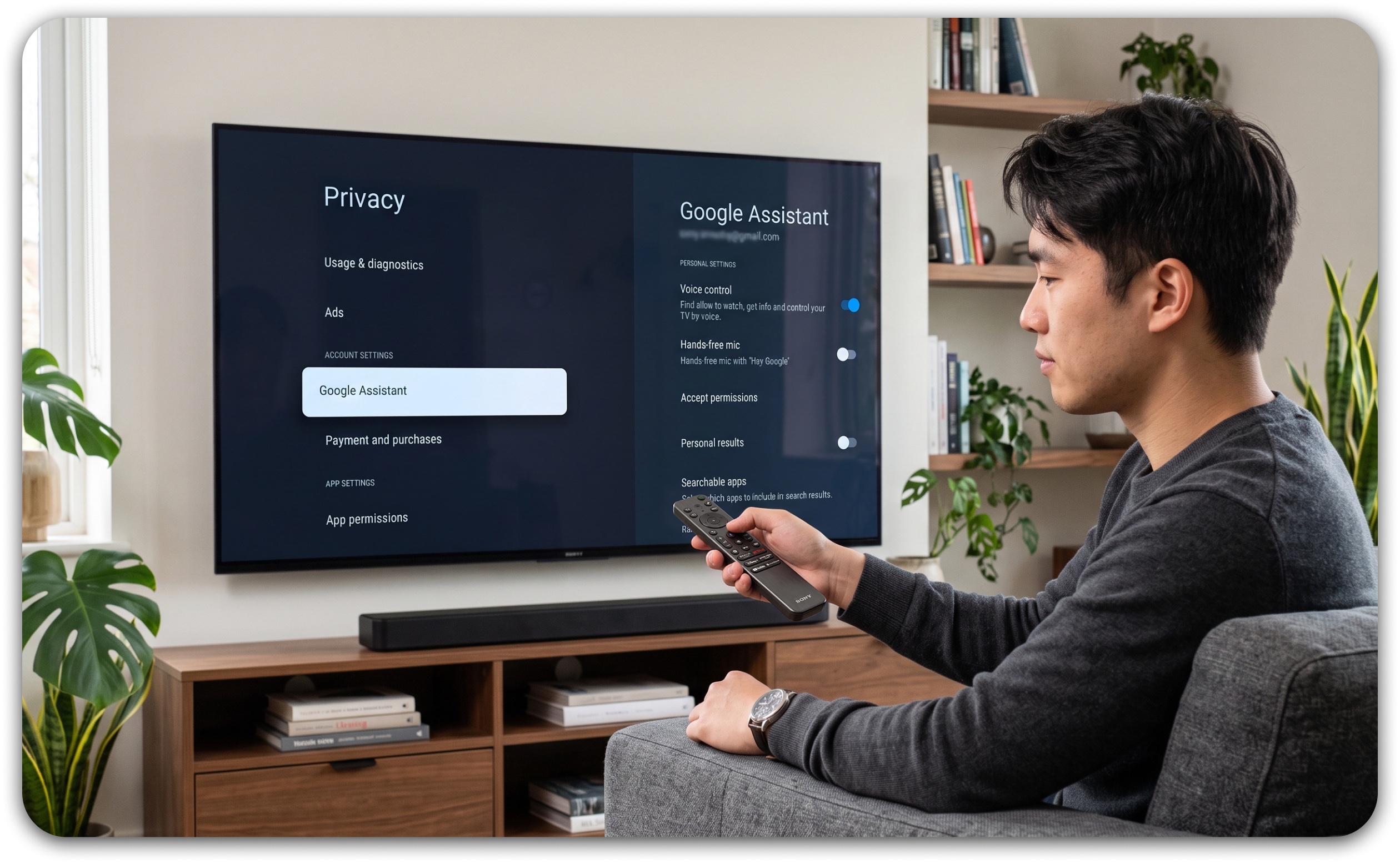
If you would rather skip the remote entirely, you can set up hands-free activation instead. This requires a built-in microphone, which is available on select BRAVIA models. To check if your TV supports it, refer to your model's specifications on the Sony support page.
On Google TV models, go to Settings > Privacy > Google Assistant and follow the on-screen prompts to set up Voice Match. Once enabled, simply say "Hey Google" and your BRAVIA will respond without pressing a button.
Running through the Voice Match steps takes about a minute and helps Google Assistant recognise your voice more accurately over time.
What You Can Ask
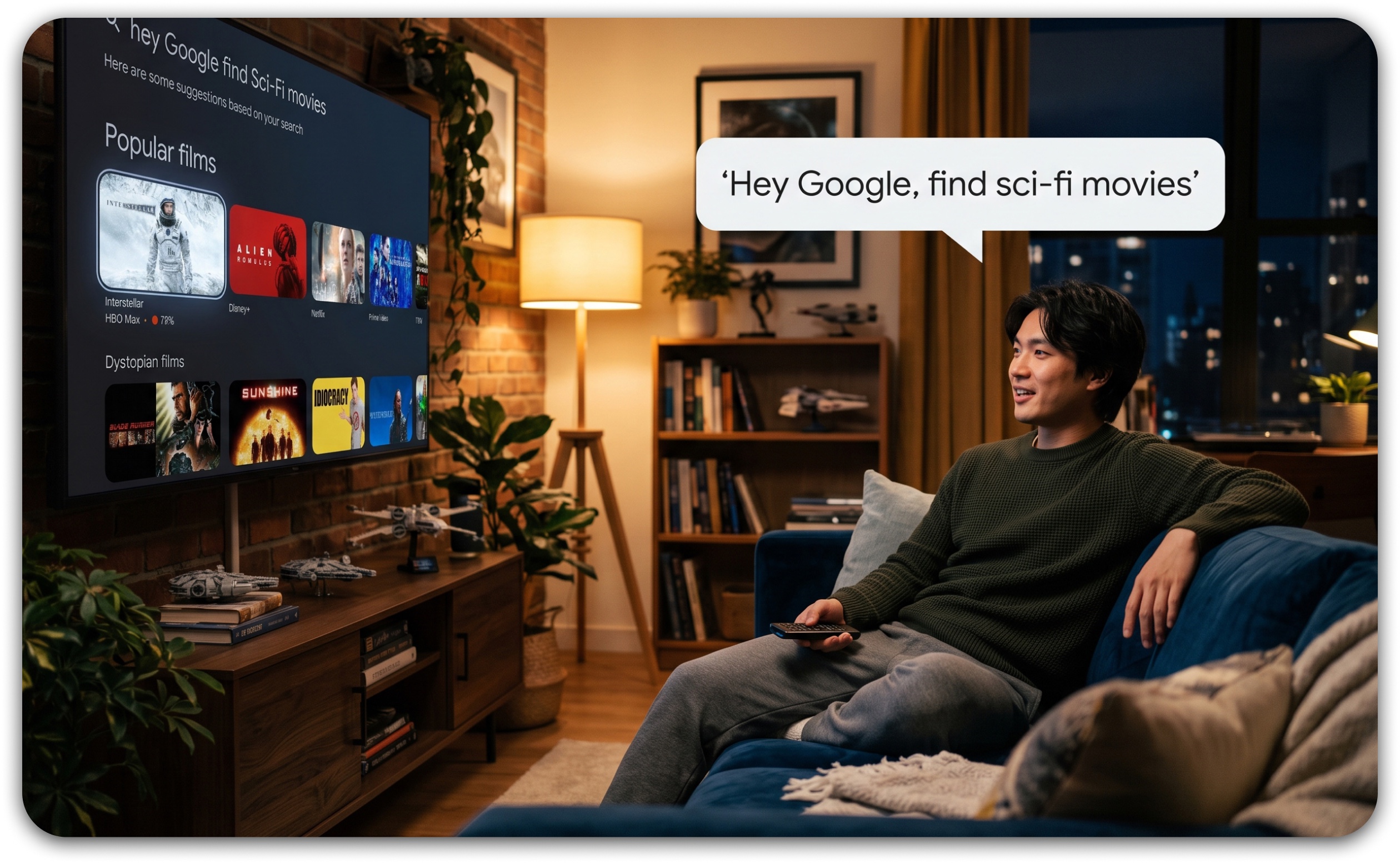
Both methods give you access to the same voice commands. Here are some things you can ask Google Assistant on your BRAVIA:
Find content: "Find comedy movies on Netflix", "Show me HD content on Disney+", "What is trending on YouTube"
Control your TV: "Volume up", "Mute", "Go to home", "Open Spotify", "Pause"
Adjust settings: "Turn on subtitles", "Make the screen brighter", "Switch to HDMI 2"
Get information: "What is the weather today?", "When does the match start?", "Who directed this film?"
Control smart home devices: If your home devices are linked to your Google account, you can manage them through your BRAVIA. "Turn off the living room lights", "Dim the bedroom lights"
A Quick Note
Before you start, here are a few things to be aware of:
Google Assistant is available in supported countries and regions across Southeast Asia. If a voice command is not working as expected, check that Google Assistant is available for your country and language
Google Assistant works best with a stable internet connection. Voice commands that require search results or smart home control will not work offline
If your TV does not respond to "Hey Google", check that hands-free detection is enabled under Settings > Privacy > Google Assistant and that the TV's microphone is not muted
Google Assistant on BRAVIA is linked to the Google account set up on the TV. If multiple people use the TV, Voice Match can be trained to recognise different voices and pull personalised results for each person
Some commands will open third-party apps directly, but availability depends on which apps are installed on your TV and whether they support Google Assistant integration
If you have a 4K Smart TV, an HDR TV, an OLED TV, or a Mini LED TV, you can ask Google Assistant to filter specifically for 4K or HDR titles, which makes finding content that suits your display a lot quicker
You Are All Set
That covers everything you need to start using voice control on your BRAVIA. From here, Google Assistant handles the rest, taking care of the searching, the switching, and the adjusting, so you can focus on what is actually on screen.