


Article Summary
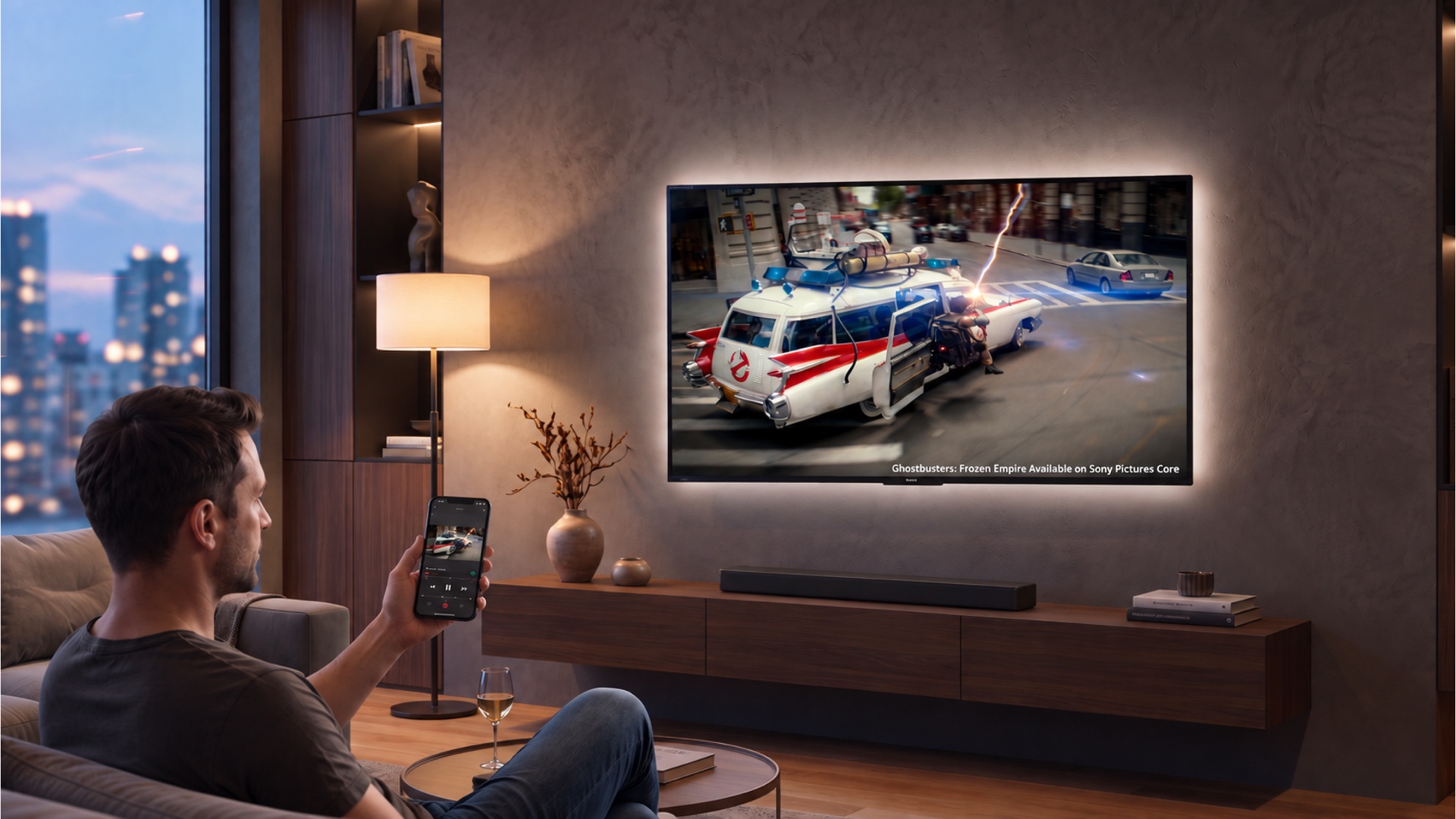
Bring content from your phone to the big screen with your Sony BRAVIA TV. Depending on your TV and mobile device, you can use Chromecast (Google Cast), Apple AirPlay, or Screen Mirroring to stream videos, share photos, play music, or display your phone screen on your TV.
- Use Chromecast (Google Cast): Cast content from supported apps on Android phones and iPhones to compatible BRAVIA Google TV and Android TV models. Connect both devices to the same Wi-Fi network, tap the Cast icon, and select your TV.
- Use Apple AirPlay: Stream content or mirror your entire screen from an iPhone or iPad to a compatible BRAVIA TV. Enable AirPlay on your TV, then use Screen Mirroring or the AirPlay icon on your Apple device.
- Use Screen Mirroring: Mirror your Android phone using Miracast on select BRAVIA TVs released between 2013 and 2020. Google TV and Android TV models do not support this function, so Chromecast is recommended instead.
- Check Compatibility First: Available connection methods vary by BRAVIA model. Confirm that your TV supports your preferred method and ensure both devices are running the latest software before getting started.
- Optimise Your Connection: Chromecast and AirPlay require your phone and TV to be on the same Wi-Fi network. A strong, stable Wi-Fi connection helps maintain the best streaming experience, particularly when enjoying 4K HDR content.
In short: Choose the connection method that matches your phone and BRAVIA TV. Chromecast provides a simple option for both Android and iPhone, AirPlay gives Apple users flexible streaming and screen mirroring, while Miracast Screen Mirroring is available on select older BRAVIA models. Once connected, you can enjoy your favourite content comfortably on the bigger screen.
There are times when your phone screen simply does not do your content justice. Some things are just better on a bigger screen. Whether that is a video, a photo album or something you want the whole room to see. Your Sony BRAVIA TV makes it easy to get there. Depending on the device you are using, there are a few ways to do it.
Before You Begin
Not every connection method works on every BRAVIA model. Check the available functions and compatibility information based on your TV type and your preferred connection method before getting started.
Chromecast (Google Cast) and AirPlay require both your phone and TV to be on the same Wi-Fi network. Screen Mirroring works without an internet connection on your TV.
Once confirmed, make sure:
Both devices are running the latest software
Your TV is powered on and ready

Ghostbusters: Frozen Empire Available on Sony Pictures Core
Method 1: Chromecast (Google Cast), For Android and iPhone
Chromecast (Google Cast) is built into Sony’s Google TV and Android TV models, offering a reliable option for both Android and iPhone users. It works with most popular apps and requires very little setup.
Step 1: Open a Cast-enabled app
Open an app that supports Chromecast (Google Cast) on your phone, such as YouTube, Netflix or Spotify.
Step 2: Tap the Cast icon
Tap the Cast icon within the app. A list of nearby devices will appear.
Step 3: Select your TV
Choose your Sony BRAVIA TV from the list. Playback will move to the TV and your phone does not need to stay active for it to continue.
Once connected, your BRAVIA takes over the stream entirely, keeping picture quality smooth and consistent regardless of what you do on your phone.

Method 2: AirPlay, For iPhone and iPad
For iPhone and iPad users, AirPlay offers an effortless way to mirror your screen or stream content directly to your TV.
Step 1: Enable AirPlay on your TV
Navigate to Settings > System > Apple AirPlay & HomeKit > Apple AirPlay & HomeKit Settings. Select AirPlay and turn it on.
Step 2: Open Control Centre on your iPhone
Swipe down from the top-right corner of your screen to open Control Centre.
Step 3: Tap Screen Mirroring or Stream Directly
Tap Screen Mirroring in Control Centre and select your BRAVIA TV from the list. If prompted, enter the on-screen code to complete pairing. You can also stream video, photos, or music directly from a supported app by tapping the AirPlay icon within the app and selecting your TV.
The pairing also carries over to future sessions, so connecting becomes even quicker the next time.

Method 3: Screen Mirroring, For Android
Screen Mirroring uses Miracast technology to wirelessly display your Android phone’s screen on your TV, which comes in handy for apps that do not natively support casting.
Compatible devices: Select BRAVIA TVs released between 2013 and 2020. Google TV and Android TV models do not support this function, so for those, Method 1 is the recommended route.
Step 1: Enable Screen Mirroring on your TV
Press the Input button on your remote, select Screen Mirroring and press Enter.
Your TV will enter standby mode and wait for your device.
Step 2: Enable Screen Mirroring on your Android phone
On your Android phone, look for Screen Mirroring or Cast within your Settings or Quick Settings panel.
The exact path varies by manufacturer.On Sony Xperia phones (Android™ OS 4.4 or later), go to Settings, then Device Connection, and select Screen Mirroring, or look for it under Xperia Connectivity on older models.
Step 3: Select your TV
Your Sony BRAVIA TV will appear in the list.
Select it to connect.
Things to Keep in Mind
Google Cast is the most consistent option across both Android and iPhone. Once casting begins, streaming quality is not affected by your phone's battery or signal
AirPlay goes beyond individual apps by mirroring your entire screen, giving iPhone users the greatest flexibility
For the best streaming quality on a Mini LED TV or HDR TV, a strong and stable Wi-Fi connection makes a real difference
Everything Looks Better on BRAVIA
Once your phone and TV are connected, the experience is seamless. Your Sony BRAVIA TV is designed to work with the devices you already use, bringing your content to the screen it deserves to be on. From a 4K HDR film on an OLED model to holiday photos on a Mini LED TV, everything is better when the screen is big enough to do it justice.
* Ghostbusters: Frozen Empire: © 2024 Columbia Pictures Industries, Inc. and TSG Entertainment II LLC. All Rights Reserved