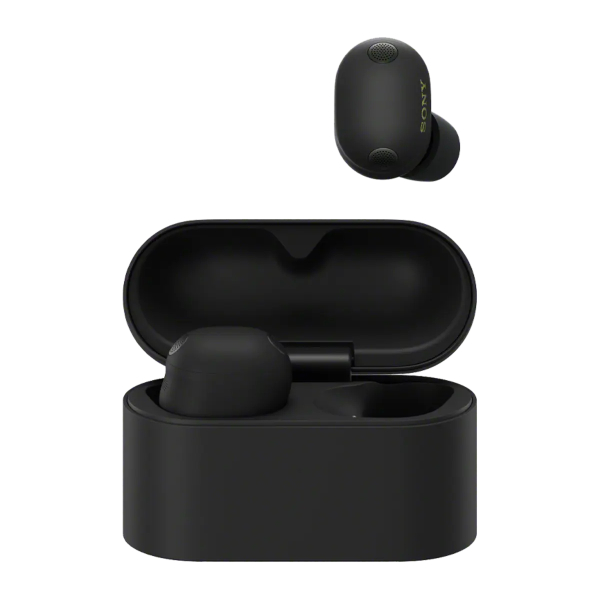



Getting a new pair of earbuds is exciting but the different touch-sensitive gestures can sometimes feel overwhelming. To help you get started, here is a breakdown of how to navigate your audio experience using the intuitive tap controls of the new WF-1000XM6.
The Foundation: Sony Sound Connect App
Before you start tapping, make sure to download the Sony Sound Connect App. It acts as a visual dashboard where you can see exactly which features are active and customize how your earbuds respond to your touch.
Download Sony's Sound Connect App today and bring your sound to life!



Default Music & Noise Control
By default, the earbuds divide responsibilities between your left and right sides to keep things organize:
The left earbud: Your Environment
- One Tap: Switches between noise-cancelling modes (Noise Cancelling, Ambient Sound or Off)
- Tap and Hold: Activates Quick Attention Mode. This instantly lowers your music and lets in outside sound so you can have a quick conversation without taking the earbuds out
The right earbud: Your Media
- One Tap: Play or Pause
- Two Taps: Skips to the next song
- Three Taps: Restart the current song or go to the previous track
Managing Calls on the Go
You don't need to reach for your phone when someone rings. The controls are designed to be mirrored for calls, meaning you can use either earbud to:
- Double Tap: Answering an incoming call or end a current one
- Tap and Hold: Reject an incoming call if you're busy
- Transferring Calls: If you are already on a call and a second one comes in, a tap-and-hold gesture will switch over to the new caller
The New Volume Shortcut
The WF-1000XM6 features a specific rhythm for adjusting volume. To change the levels:
- Tap four times quickly to activate volume control
- On the fifth tap (and every tap after), the volume will shift
- By default, the left earbud lowers the volume and the right earbud raises it
Make it Yours: Custom Grouping
One of the biggest upgrades in this model is Custom Grouping. Unlike previous version where functions were locked into specific sets, you can now use the app to:
- Swap controls between the left and right sides
- Assign specific music services (like Spotify or Amazon Music) to start playing with just two or three taps
- Reassign volume to different tap sequences if the "four-tap" method isn't for you
Tips for Beginners: If you find you've customized a little too much and want to start over, you can always use the Initialize Settings option in the app to return everything to the factory defaults.
Need a visual walkthrough? Watch the full tutorial below.